
本文由日文译成中文。
这是使用 Excel VBA 更改工作表中形状(自动形状)文本颜色的记录。
使用 “Color ”或 “ColorIndex ”属性更改文本的颜色。
< Sponsored Links >
更改形状(自动形状)文字颜色的示例
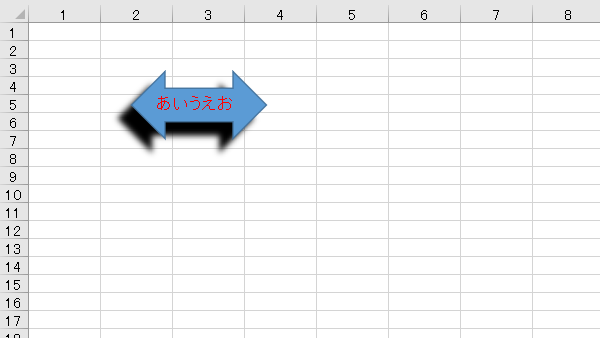
按 RGB 值更改
Display the word “あいうえお” on the figure, set the font size to 13 points and the color to red with RGB values.
Sub test()
    Dim shp As Shape
    Set shp = ActiveSheet.Shapes(1)

    With shp.TextFrame.Characters
        .Text = "あいうえお"
        With .Font
            .Size = 13
            .Color = RGB(255, 0, 0)
        End With
    End With
End Sub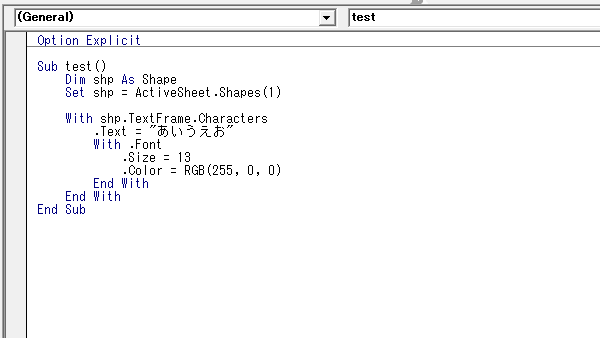
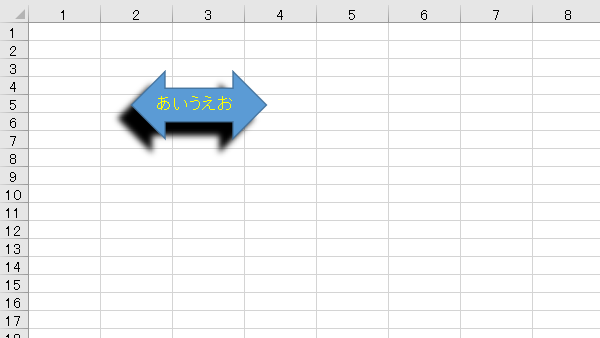
按颜色常数更改
在图形上显示 “あいうえお”一词,使用颜色常量将字体大小设置为 13 点,颜色设置为黄色。
Sub test()
    Dim shp As Shape
    Set shp = ActiveSheet.Shapes(1)

    With shp.TextFrame.Characters
        .Text = "あいうえお"
        With .Font
            .Size = 13
            .Color = vbYellow
        End With
    End With
End Sub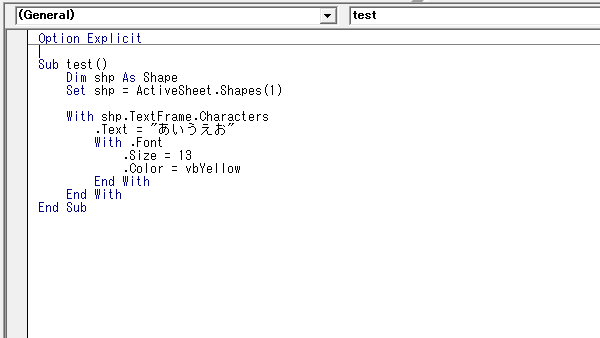
颜色指数变化
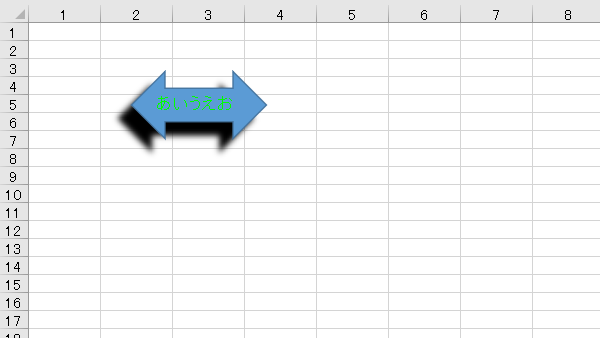
在图形上显示 “あいうえお”字样,将字体大小设置为 13 点,颜色索引中的颜色设置为绿色。
Sub test()
    Dim shp As Shape
    Set shp = ActiveSheet.Shapes(1)

    With shp.TextFrame.Characters
        .Text = "あいうえお"
        With .Font
            .Size = 13
            .ColorIndex = 4
        End With
    End With
End Sub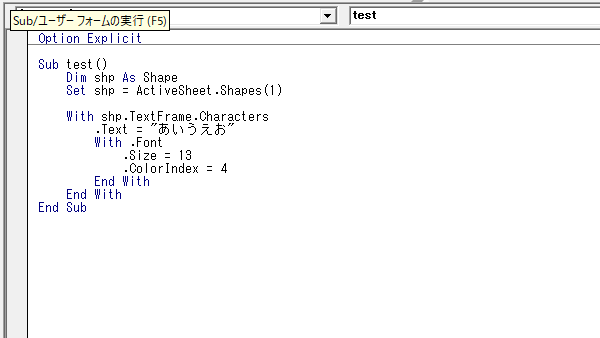
< Sponsored Links >